Framer Plugins Explained: Everything You Need to Know
Discover what Framer plugins are, how they work, and which ones matter—avoid wasted time and upgrade your workflow fast with this complete guide.

Solt Wagner
Designer & Founder of Frameblox

Why Framer Plugins Are the Fastest Way to Level Up Your Builds
If you’ve ever built a Framer site and thought, “I love this… but I’m doing the same little steps over and over,” you’re exactly the kind of person who benefits from Framer plugins. They’re not just shiny add-ons. They’re practical tools that can take the annoying parts of building (formatting, importing, repetitive layout tasks, content wrangling) and shrink them down to a couple clicks.
What plugins change vs native Framer features
Native Framer is already strong: layout, responsive behavior, CMS, animations, publishing—it’s all there. Where Framer plugins really change the experience is in the “in-between” tasks: importing assets, generating consistent structures, cleaning up layers, or automating things you’d otherwise do manually. Think of plugins as helpers that sit alongside Framer’s core tools and speed up the boring parts without replacing the foundation.
The real ROI: speed, consistency, fewer mistakes
The biggest return I’ve seen from Framer plugins isn’t only speed (though yes, speed is huge). It’s consistency—the kind that stops small visual differences from creeping in across 40 pages. When you reduce manual steps, you also reduce human error: fewer mismatched paddings, fewer misnamed layers, fewer “why is this one button different?” moments.
Common misconceptions first-time users have
A lot of first-time users assume plugins are only for developers or only for advanced sites. Another common misunderstanding is that plugins will “fix” a messy design system or replace good structure—unfortunately they won’t, at least not by themselves. A plugin can accelerate your workflow, but if your components and styles aren’t organized, it’ll just help you move faster in the wrong direction.
If you want to get a feel for the ecosystem, Framer’s official directory is the best starting point: Framer Plugins: Extend what Framer can. And if you’re building production sites often, pairing plugins with a proper UI kit and component library (like frameblox.com) is where the compounding speed gains get pretty addictive.
So, What Is a Framer Plugin (and What It Isn’t)?
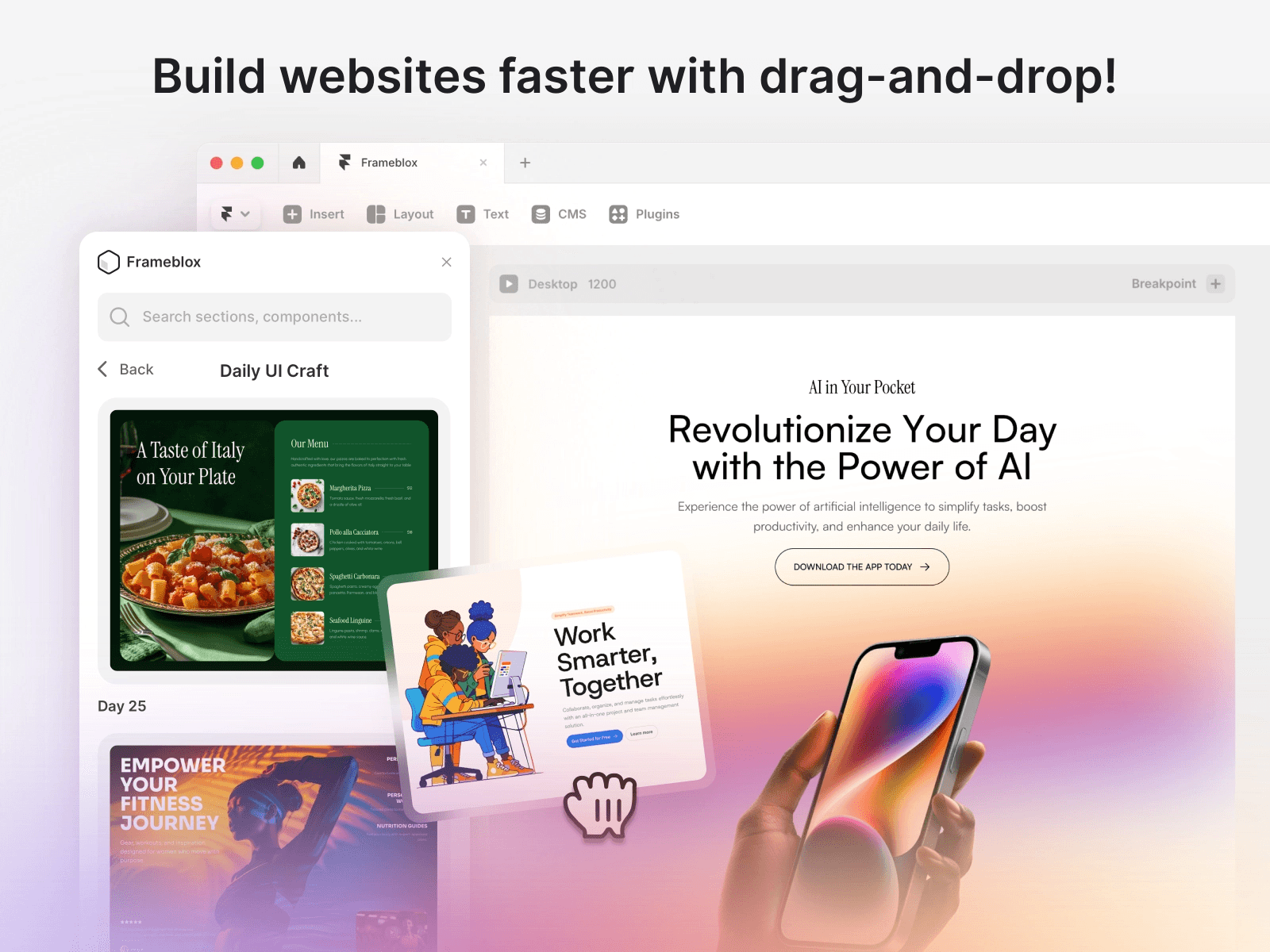
People ask “what is Framer plugin?” like it’s some mysterious technical thing, but it’s simpler than it sounds. A plugin is basically an extra tool you add to Framer’s editor that helps you perform specific tasks faster—usually tasks that would otherwise take multiple clicks, careful repetition, or manual cleanup.
Plain-English definition and where plugins live
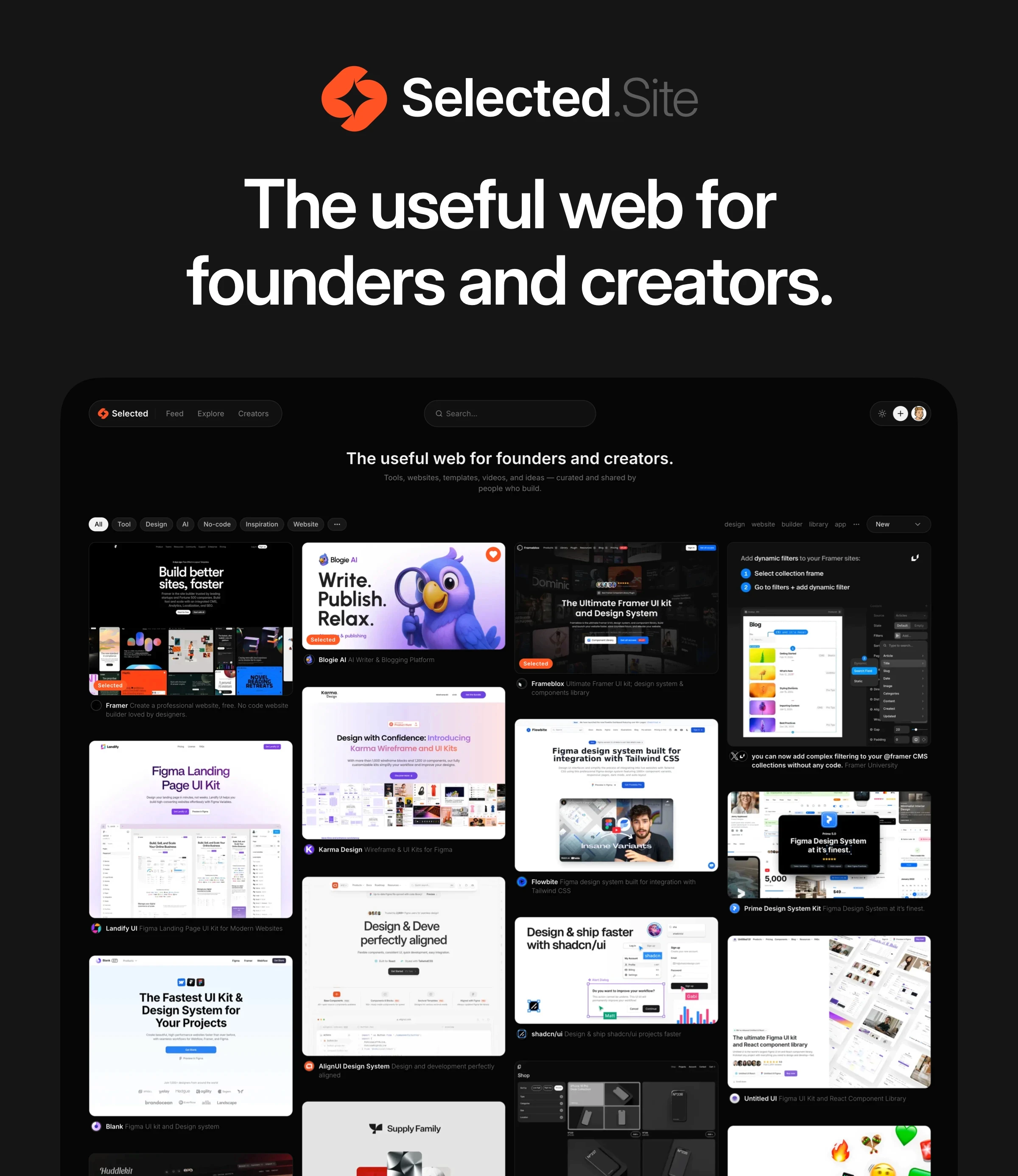
A Framer plugin is a small extension that runs inside the Framer editor and adds features or workflows Framer doesn’t ship by default. Most plugins live in the Framer plugin store (the official directory), where you can browse, install, and manage them. You’ll also see community-curated directories and showcases, like FramerPlugins | Everything you need for, which can be handy when you’re hunting for “the one tool” that solves a specific workflow problem.
Tasks plugins can automate inside the editor
Plugins are best at automating repeatable editor actions: generating layouts, importing or converting content, helping you manage styles, or streamlining asset workflows. They can also speed up quality-of-life tasks like organizing layers, creating variants faster, or applying consistent formatting across multiple components. If you build lots of landing pages, these little wins stack up quickly into hours saved per week.
Limits: what plugins can’t safely do
It’s also helpful to know what plugins aren’t: they’re not a magic backdoor to do anything and everything inside Framer. Plugins typically can’t (and shouldn’t) override core publishing infrastructure or secretly rewrite your entire project without you seeing. If a plugin claims it can “instantly optimize everything” with one click and no explanation, I treat that as a warning sign, not a feature.
How Framer Plugins Work Behind the Scenes
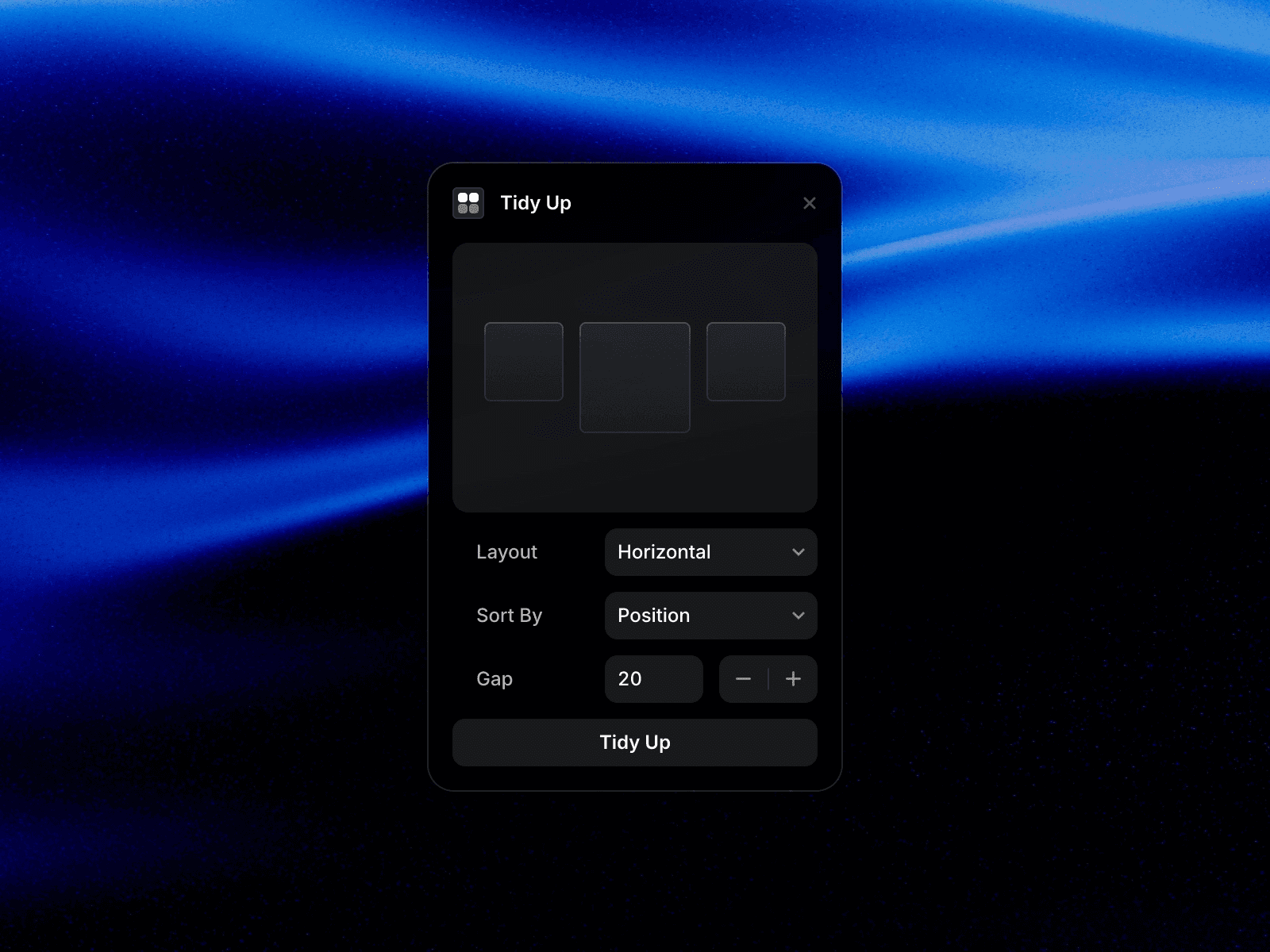
Once you start relying on Framer plugins, it’s worth understanding the basics of how they operate—especially if you’re building client sites, handling sensitive content, or working in a team. You don’t need to be a developer to do this well. You just need a few practical instincts around permissions, scope, and trust.
Plugin permissions, access, and project scope
Most plugins operate within the context of the project you’re currently editing. That means they can read or modify things like layers, frames, styles, text, and sometimes CMS-related structures—depending on what they’re designed to do. When a plugin asks for access that doesn’t match its purpose, that’s when I slow down and double-check what I’m agreeing to.
Data in/out: content, components, and assets
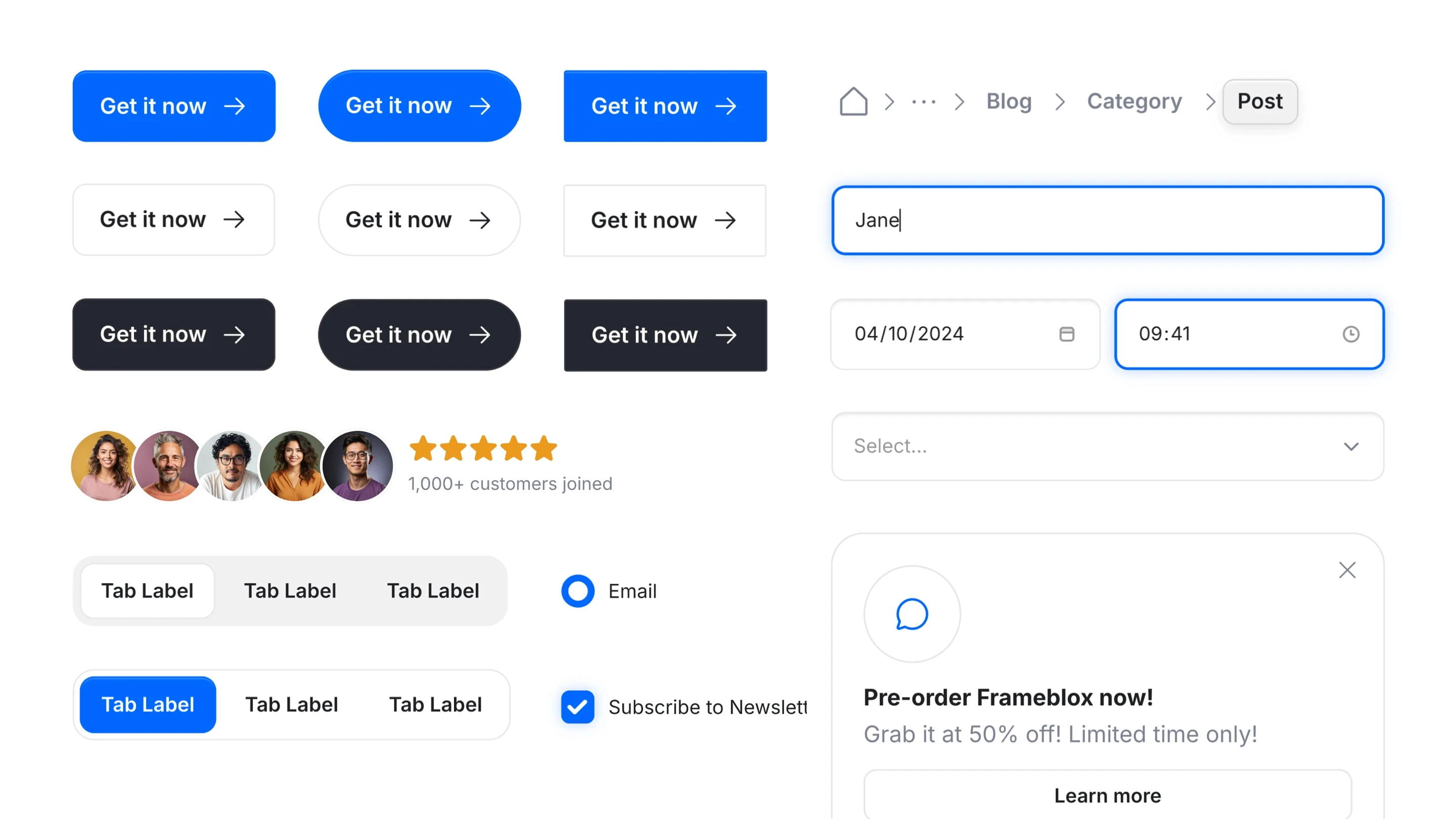
Many Framer plugins are basically “transformers”: you feed them content (like text blocks, CSV-style data, or existing sections), and they output structured components or updated layouts. Some plugins may also pull in external assets like icons or images, which is convenient, but it also means you should understand the source and licensing. If you’re using a UI kit like Components from Frameblox, that already gives you a controlled library—plugins then become a way to place, remix, and maintain that library faster.
Security and trust signals to look for
My personal checklist is simple: clear documentation, recent updates, recognizable creator info, and transparent descriptions of what the plugin changes. Educational hubs can help you build confidence here too—Framer’s learning ecosystem is growing fast, and resources like Best Free Framer Resources can help you develop a “smell test” for tools that are solid versus tools that are hype.
Finding the Good Stuff: Navigating the Framer Plugin Store
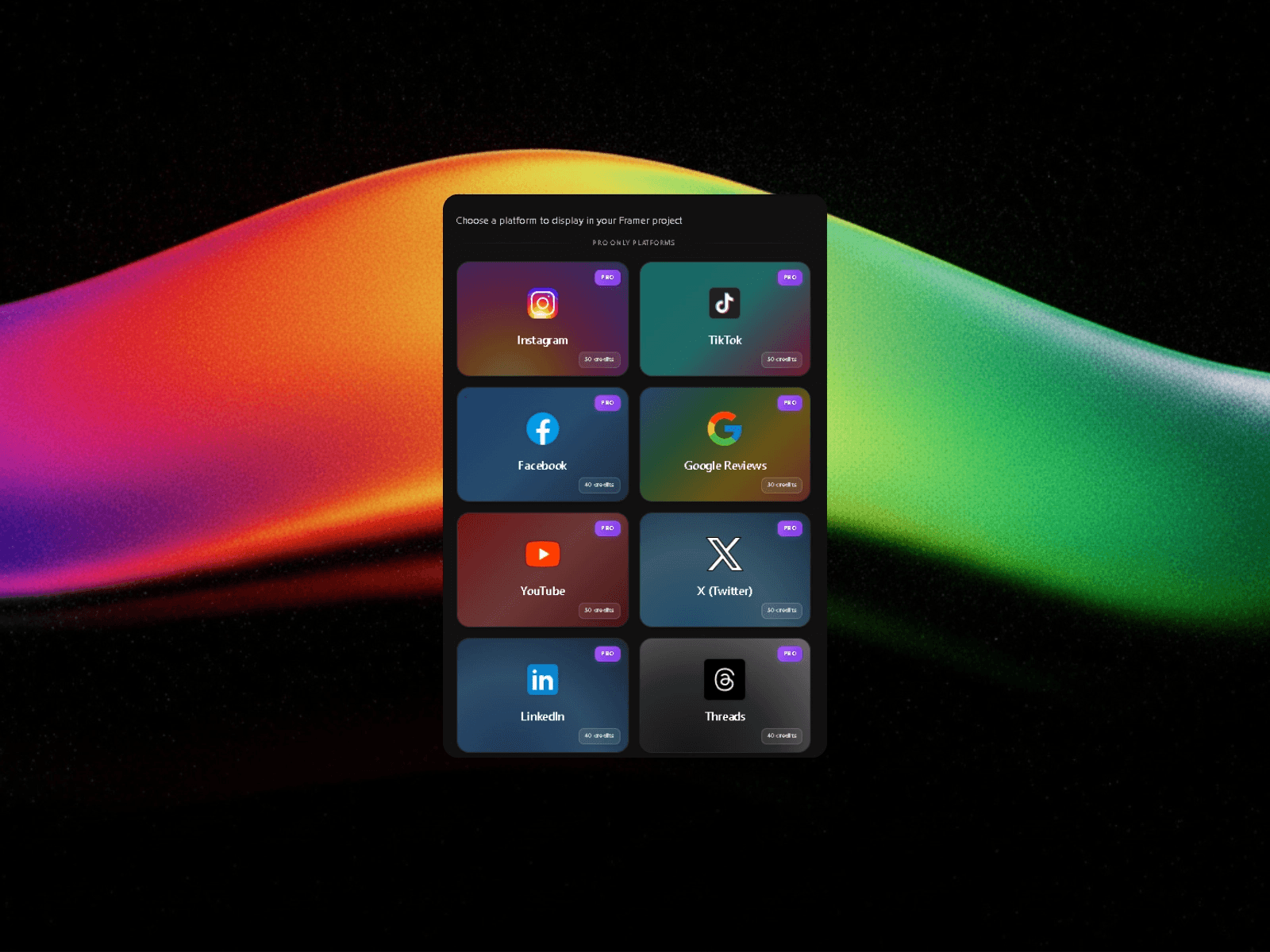
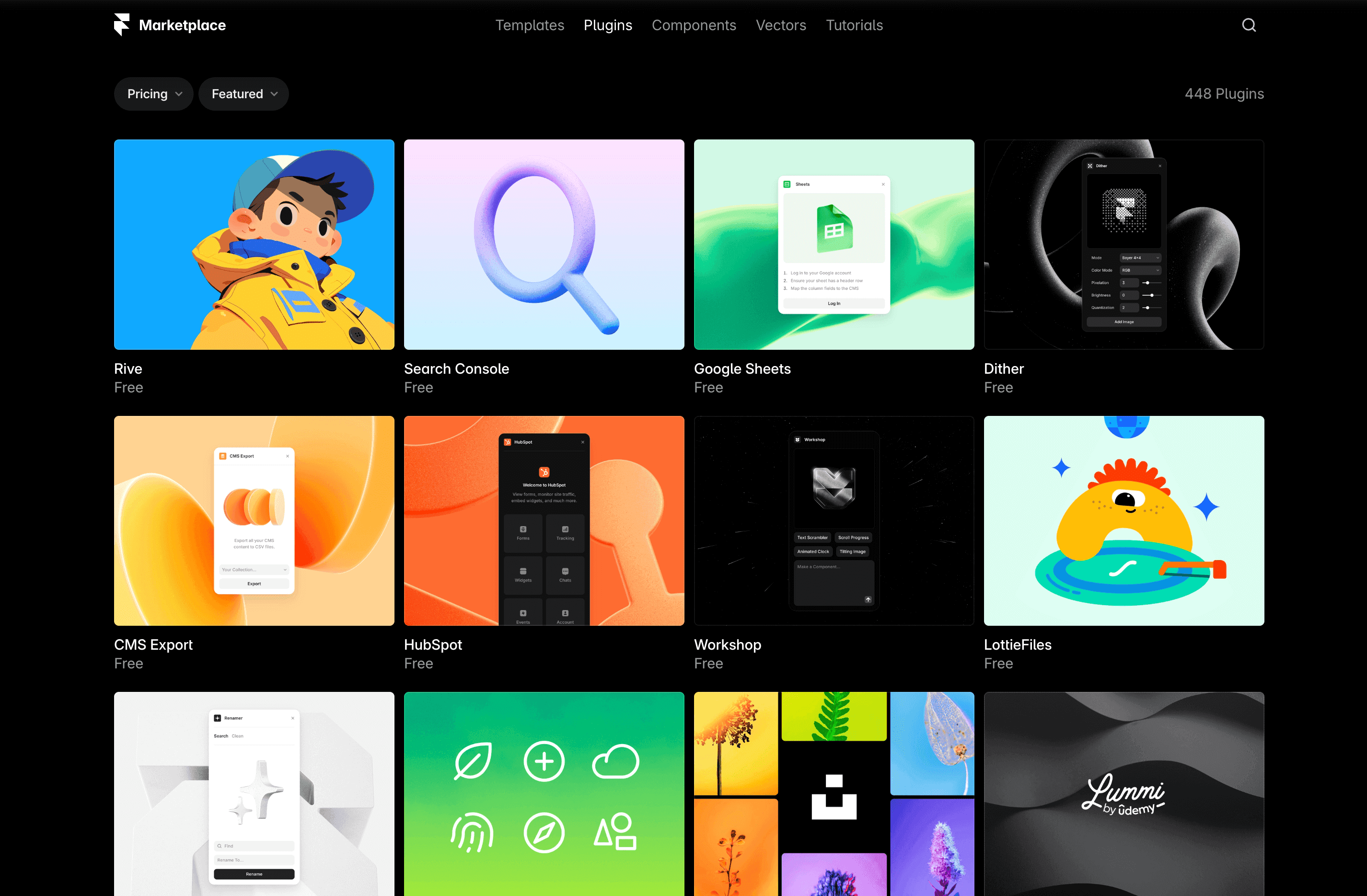
The Framer plugin store is like any marketplace: there are gems, there are half-finished experiments, and there are tools that are fine but not right for your workflow. The goal isn’t to install everything. The goal is to build a small set of Framer plugins you actually trust and use weekly.
Search, categories, and sorting that actually help
When I’m searching, I avoid generic terms like “SEO” or “CMS” at first and instead search by the task I want to eliminate—like “bulk edit,” “icons,” “sitemap,” or “compress.” Categories are useful, but sorting by recently updated often reveals the tools that are actively maintained. If you’re building fast-moving marketing sites, maintenance matters almost as much as features.
Reading listings: screenshots, changelogs, and docs
A plugin listing should tell you what it does in one sentence, show it in action, and explain how to reverse or undo changes if needed. Screenshots matter because they hint at UI quality and clarity. Changelogs matter because you’ll want confidence the creator responds when Framer updates something internally and the plugin needs a fix.
Red flags: abandoned plugins and vague claims
If the listing is vague (“boost your workflow”) but doesn’t show specific steps, I usually skip it. If the plugin hasn’t been updated in a long time, I treat it as risky—especially for client projects where you don’t want random breakage. Community guides can help you develop good habits here, like How to use Framer Plugins [Guide], which is worth skimming before you go on an installation spree.
The Plugin Categories That Matter Most (With Real Use Cases)
Instead of chasing “the best Framer plugins” as a single list, I like to think in categories. Different sites need different stacks. A portfolio site might need two plugins total, while a SaaS marketing site with lots of pages, iterations, and SEO demands might benefit from a more intentional set of Framer plugins focused on repeatability and quality control.
Content and CMS helpers
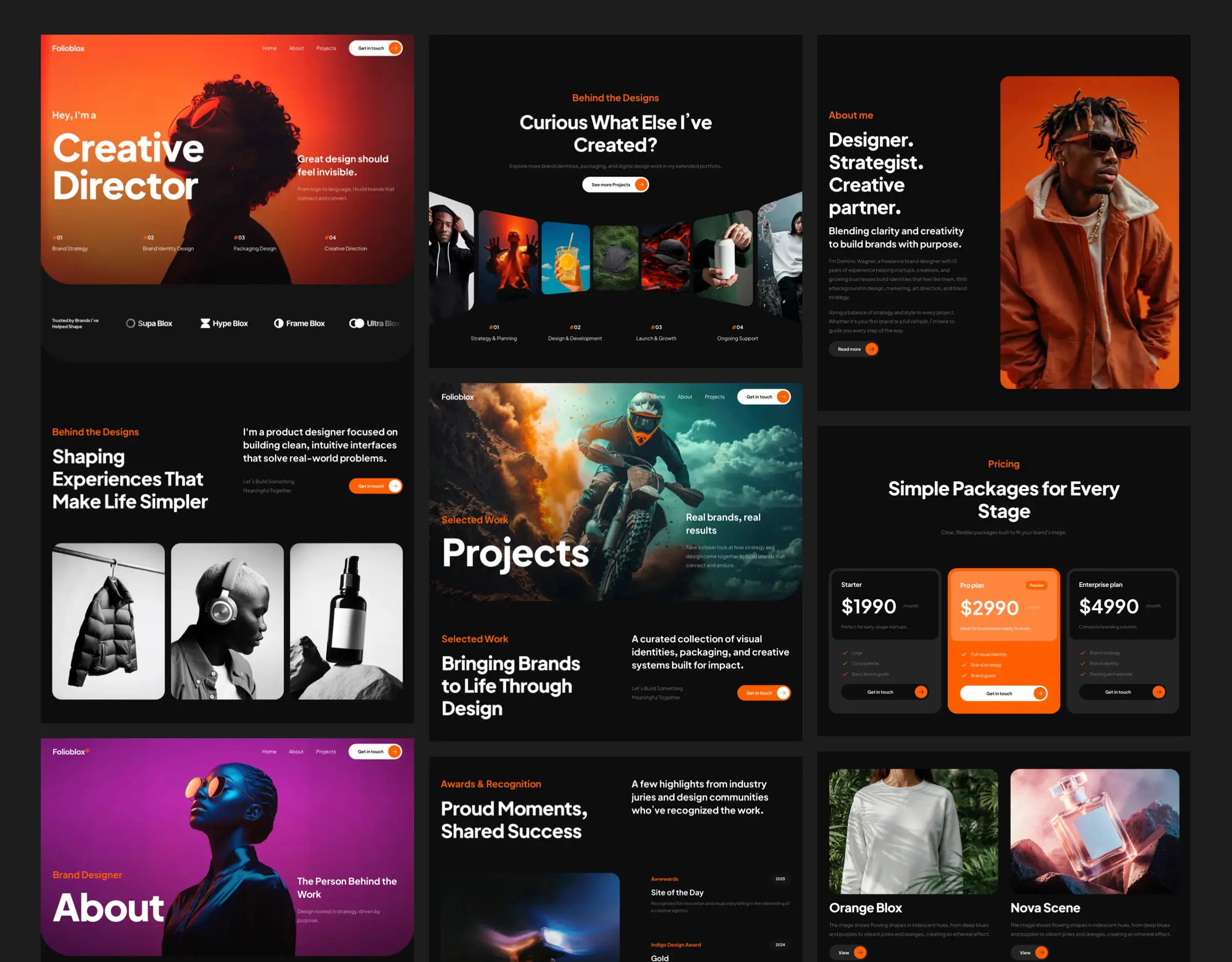
Content-focused plugins tend to pay off quickly if you publish often or manage lots of structured pages (case studies, job posts, changelogs, help docs). They can speed up tasks like formatting, bulk updating fields, or generating repeated page structures that match your CMS schema. If you’re building with Frameblox sections, combining CMS helpers with pre-built layouts can make publishing feel more like assembling than designing.
Design systems, components, and style utilities
This is where things get fun—because design system plugins can keep spacing, typography, and components aligned across dozens of pages. They’re especially useful when multiple people touch the same project, or when you’re iterating quickly and don’t want style drift. Frameblox leans heavily into this approach with a component library mindset—browse the All collection and you’ll see how repeatable sections reduce the need to reinvent layouts every time.
SEO, analytics, and performance tooling
SEO and performance plugins are best when they’re specific: generating metadata patterns, checking heading structure, surfacing missing alt text, or helping you keep pages lightweight. The important part is that you still understand basics like semantic hierarchy and internal linking—plugins should support good practices, not cover for missing fundamentals. If you treat SEO as “something a plugin handles,” you’ll end up with a site that looks great but underperforms.
Integrations: forms, automation, and databases
Integration plugins connect Framer to the rest of your stack—forms, email tools, CRMs, automations, and databases. The real win here is reducing copy-paste between platforms and keeping lead capture reliable. If you’re running marketing experiments weekly, integration-focused Framer plugins can save real time and reduce the chance of broken workflows slipping into production.
Best Framer Plugins for Beginners (Quick Wins in Under an Hour)
When you’re new, the temptation is to install a huge list of tools and then feel overwhelmed. I’d rather you pick a few beginner-friendly Framer plugins that give you quick wins—meaning you feel the improvement immediately, and you don’t have to change your entire build process to benefit.
Plugins that reduce repetitive layout work
The first “quick win” category is anything that reduces repetitive layout setup—things like generating grids, applying consistent spacing patterns, or helping you duplicate structures cleanly. Even if each action only saves 20–30 seconds, it adds up fast when you’re assembling a full site with dozens of sections. This is also where pairing plugins with ready-made sections from Base can make you feel like you gained an extra day in your week.
Asset and icon workflows that don’t break design
Asset plugins can be lifesavers if they keep icons consistent (stroke width, size, alignment) and prevent the “random SVG chaos” that sneaks into projects over time. Beginners often lose hours to tiny visual inconsistencies—icons that don’t match, logos that import at weird sizes, and images that aren’t optimized. A good plugin should make assets predictable, not just faster to import.
Copy/content helpers for faster publishing
Content helpers are underrated early on because they don’t feel “design-y,” but they reduce the friction of getting pages live. Tools that help clean up text formatting, generate placeholder copy, or standardize headings can keep you shipping instead of polishing forever. If you publish landing pages often, content-focused Framer plugins can be the difference between “almost ready” and “live today.”
Best Framer Plugins for Teams and Agencies (Scale Without Chaos)
When you move from solo building to team building, your needs change. Suddenly, it’s not just about your speed—it’s about everyone staying aligned. This is where Framer plugins can quietly become the glue that holds a workflow together, especially if you’re shipping multiple pages per week or managing several client projects at once.
Maintaining consistency across many pages/projects
Teams tend to drift: one person sets spacing at 24, another uses 28, and a third eyeballs it. Consistency-focused tools help prevent that drift by encouraging reuse and standardization instead of “make it again but slightly different.” If you’re building with a system like Frameblox, consistent section patterns across Styles and global components reduce the need for constant cleanup later.
Handoff-friendly workflows for designers and marketers
Agencies and teams often split responsibilities: designers handle visuals, marketers handle copy and publishing, and someone else worries about SEO. Plugins that support smoother handoffs—like content formatting helpers or structure checkers—reduce the back-and-forth. In my experience, the best tools don’t add steps; they reduce the number of Slack messages needed to ship a page.
Reducing QA time with automated checks
QA is where timelines quietly die, especially when you’re checking the same issues repeatedly (missing alt text, inconsistent headings, broken links, odd spacing on mobile). Plugins that surface common issues early can cut review time significantly. The goal isn’t perfection—it’s catching predictable mistakes before they reach a client or hit production.
How to Choose the Right Plugin (A Simple Evaluation Checklist)
Picking Framer plugins is a lot like picking apps for your phone: you can download 50, but you’ll only use 5. The difference is that plugins can affect your site structure, your editing experience, and sometimes your team workflow—so it’s worth being a little picky up front.
Fit: problem clarity and expected time savings
Before you install anything, define the problem in one sentence: “I waste time doing X.” Then decide what “better” looks like: saving 15 minutes per page, reducing errors, or making handoff smoother. If a plugin doesn’t map to a real weekly pain point, it’s probably not going to stick, even if it looks cool in a demo.
Quality: updates, docs, and support signals
Quality is boring until it matters—then it matters a lot. Look for clear docs, a changelog, and signs the creator maintains the tool. If you’re building commercial sites, you want plugins that evolve along with Framer rather than lag behind and break when the editor changes.
Risk: permissions, data access, and vendor lock-in
Any tool that touches your content or components deserves a quick risk check. Does it require access that feels unrelated to its purpose? Does it output structures you can edit and maintain without the plugin later? I’m not anti-plugin at all—I just like knowing I can still ship if a tool disappears next month.
Common Mistakes People Make With Framer Plugins (and How to Avoid Them)
I like Framer plugins a lot, but I’ve also seen people use them in ways that create more work than they save. The biggest mistakes usually happen when someone treats plugins like a strategy instead of a tool. A plugin is a wrench, not an architecture plan.
Overloading projects with too many tools
The most common mistake is installing a pile of plugins and using different ones for the same type of task. This creates inconsistency and decision fatigue—every time you need to do something, you’re choosing between three tools instead of just building. I’ve found it’s better to pick one solid option per category and get really comfortable with it.
Relying on plugins for core architecture decisions
Plugins shouldn’t decide your layout system, naming conventions, or component strategy. If your foundation is shaky, plugins will amplify the mess—just faster. If you want a clean baseline, starting with a structured component library like Bento sections or browsing Code-ready components can keep your architecture consistent before you automate anything.
Ignoring performance, accessibility, and SEO basics
Some people install an SEO plugin and assume they’re covered, while missing basics like heading structure, meaningful link text, or image optimization. Performance also matters: heavy assets, too many effects, or sloppy structure can slow pages down regardless of plugins. The best Framer workflow automation still starts with strong fundamentals—plugins just make good habits easier to repeat.
What People Often Wonder About Framer Plugins
After you’ve used a few Framer plugins, you start asking the practical questions—the ones that matter when you’re committing to a workflow and maybe even paying for tools. These are the questions I hear the most from freelancers, small teams, and SaaS marketers building in Framer.
Are Framer plugins free or paid?
There are plenty of free tools, and they can be genuinely useful—especially for simple tasks like formatting or asset importing. Paid plugins tend to show up when the tool is doing something more specialized, like deeper automation, integrations, or time-saving workflows aimed at professionals. My rule: if a plugin saves you even one hour per month, it’s often worth paying for.
Do plugins affect site speed or SEO?
Most plugins don’t directly impact live site speed because they’re editor tools, not scripts injected into your published site. The indirect impact is real, though: if a plugin encourages heavy assets or bloated structures, you might publish slower pages. SEO works the same way—plugins can help you follow best practices, but they can’t replace smart content and clean structure.
Can I build my own plugin without coding?
For true custom plugins, some coding knowledge is typically required, especially if you want a polished UI and reliable behavior. That said, you can often get surprisingly far by combining existing Framer extensions, templates, and a strong component library before you ever consider building your own tool. In practice, most teams don’t need custom plugins—they need a simpler, more repeatable build system.
Your Next Steps: Build a Lean Plugin Stack You’ll Actually Use
If you take one thing from this guide, let it be this: the best Framer plugins aren’t the most popular ones—they’re the ones that match your real workflow. A lean plugin stack beats a bloated toolbox every time, because you’ll know what to reach for and when, and your projects will stay predictable.
Start with 3 plugins tied to weekly pain points
Pick three tools that solve problems you face almost every week—like repetitive layout setup, content formatting, or asset handling. Use them on a real project, not a test file, so you feel the time savings in context. If you’re building fast with a UI kit, combine that approach with Frameblox sections from All so your “default starting point” is already strong.
Create a monthly review and cleanup habit
Once a month, review your installed tools and ask: “Did I use this in the last 30 days?” If not, remove it or archive it from your workflow list. This keeps your editor clean, reduces risk, and helps you stay focused on the handful of best Framer plugins that actually earn their place.
Document your stack for repeatable projects
If you work with clients or ship multiple sites, write down your standard stack in a simple doc: which Framer plugins you use, what each one is for, and when to run it. This becomes a checklist you can hand to a teammate, and it turns “tribal knowledge” into a repeatable system. You can even link your build foundation (like Old Home as a reference layout) and promo moments (like Framer Black Friday) so your process is just as reusable as your design system.
If you’re serious about shipping faster without sacrificing quality, I’d combine a small set of trustworthy Framer plugins with a component-first approach. Frameblox is built for exactly that—consistent sections, reusable components, and a design system mindset that keeps your site clean as it grows. If you want a quick place to explore structured page patterns, check out the About and 404 collections and imagine how much time you save when those pages aren’t custom every single time.
This article was created using Blogie.